

In today's dynamic business environment, where projects are becoming increasingly complex and teams often work remotely or in a hybrid model, effective task management is essential. Without the right tool, it's easy to lose track of deadlines, get lost in the maze of assigned responsibilities, or miss key dependencies between individual tasks. Chaos in project management translates directly into delays, team frustration and ultimately, unmet business goals. This is why choosing the right project management app is so crucial. The solution must be intuitive, flexible, and tailored to the needs of modern teams. This is where Microsoft Planner comes in – a tool that combines ease of use with powerful functionality, ideal for both small projects and larger team initiatives. Planner stands out from other solutions thanks to its native integration with the entire Microsoft 365 ecosystem – this means seamless collaboration with applications such as Microsoft Teams, Outlook and To Do. In the next article in our "#Top5" series, we'll look at the five best features of Microsoft Planner that will make project management simpler, more enjoyable and more transparent.
1. User-friendly interface
Microsoft Planner isn't a new application – next year we'll be celebrating its tenth anniversary. What's more, it's already available in the cheapest Microsoft 365 Business subscription option, Microsoft 365 Business Basic. This means you gain access to an app that allows effective task management at a low cost. Furthermore, the application is integrated with other cloud services included in your license plan and recently Microsoft also decided to make Planner available as a standalone product, available as Planner Plan 1, Plan 3 and Plan 5. It's worth noting, however, that the application was refreshed last year. Therefore, the first feature of Planner that makes users enjoy using it is its simple and intuitive interface. This may seem childish but current IT solutions are packed with so many features – not to mention ubiquitous AI – that the simplicity that leads to efficiency is lost. Fortunately, in Planner's case, this simplicity has been retained.
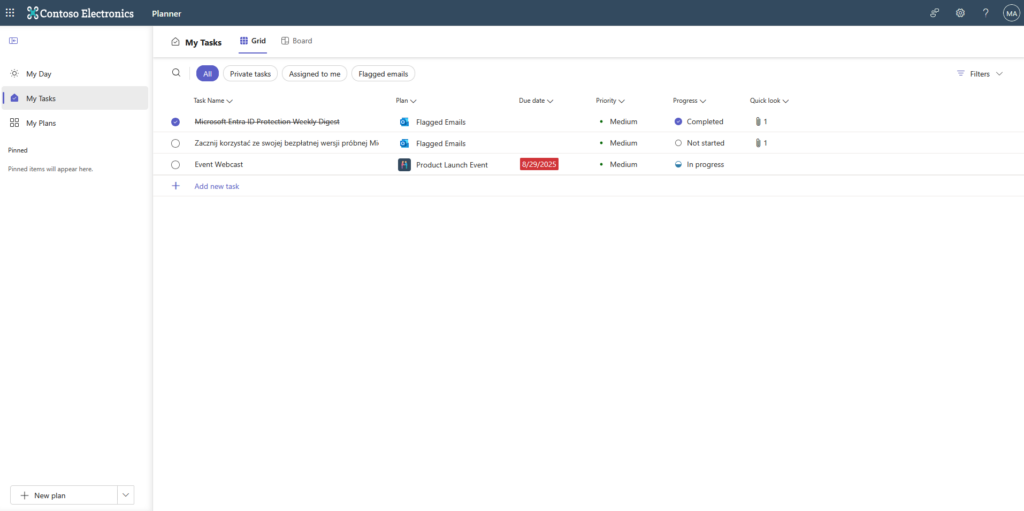
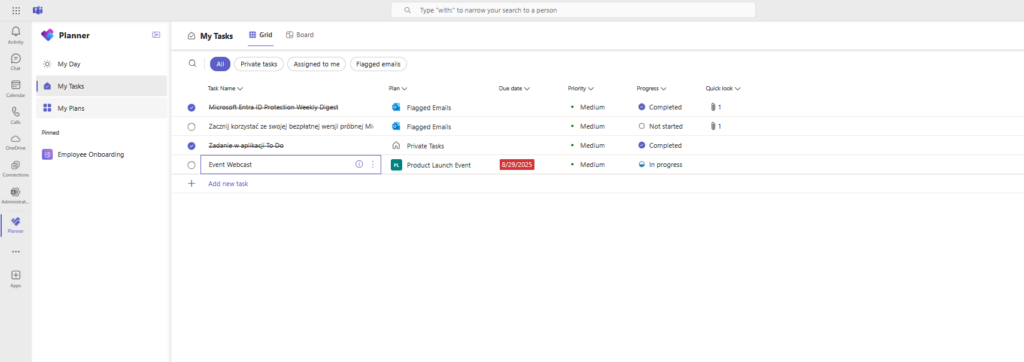
The solution consists of a side navigation bar, from which you can switch between your day, tasks and plans you're a member of. There's also a "Pinned" section, which contains plans you want to keep handy. Pay particular attention to the "My Tasks" tab, which displays – as the name suggests – your tasks. This is a collection of tasks from various plans, flagged emails and those you've created for yourself within Microsoft To-Do. A quick glance is enough to see the task's origin, priority, progress, due date and whether it contains additional information as a file. You can also sort and filter tasks using these parameters. It might seem trivial, but you can narrow and expand the columns, which wasn't possible in the previous version of the app.
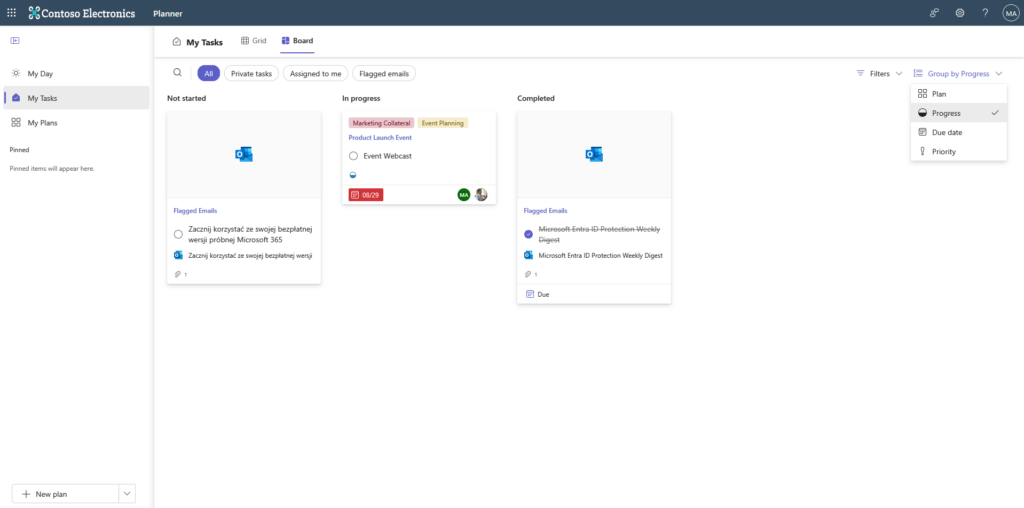
Additionally, you can view tasks in a board format. In this view, in addition to filtering, you can also group them and quickly see who is assigned to a given task besides you. For team plans, in addition to grid and board task views, you can also choose a schedule and chart views.
Templates
Another very useful feature is plan templates. Using them allows you to create a plan in a flash without having to think of the buckets and tasks within them. To use them, click "New plan" in the lower left corner of the app, then "See all templates" in the window that appears:
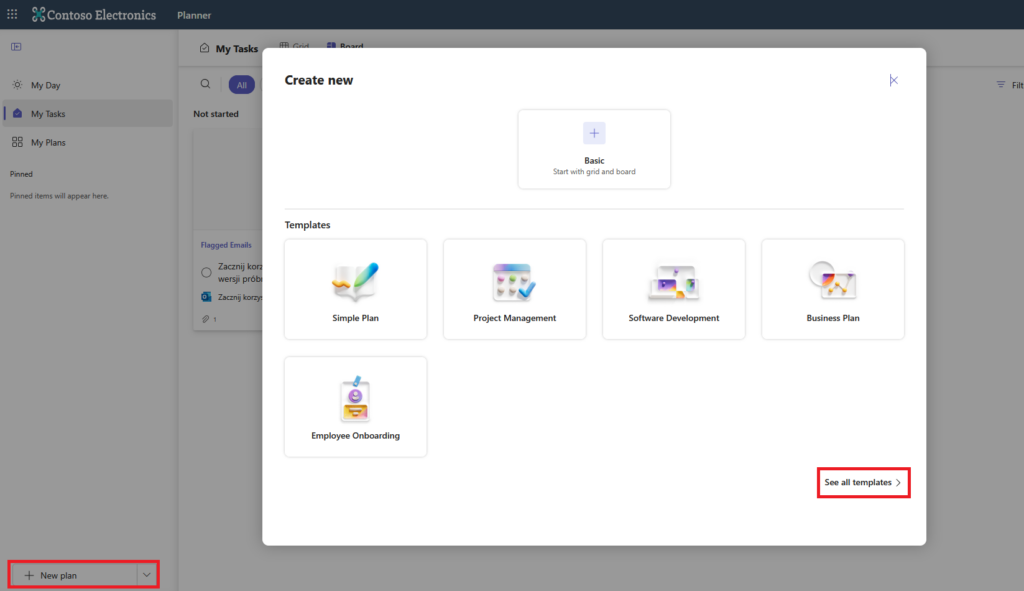
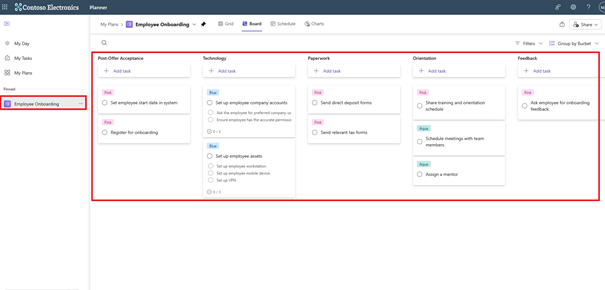
This will display the templates available for your Microsoft 365 license. For example, if you have a Planner Plan 3, you'll also find a template called "CRM Pipeline" or "Help Desk Tickets". For example, select a template available in the "HR" section and click "Use template." In the next step, you can change the name of the plan you're adding and decide whether to pin it so you will see it in the "Pinned" section.
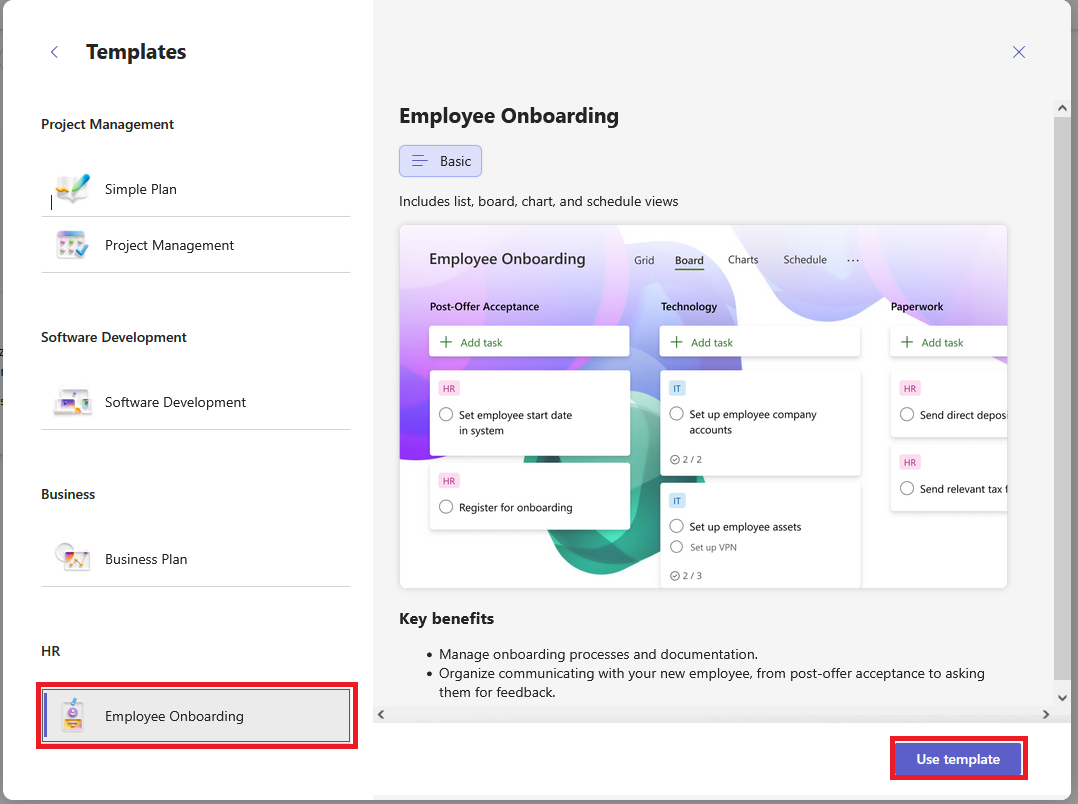
After a moment, your plan is ready. As you can see, it took Planner just a few moments to create a plan and define tasks that you can use or modify to suit your needs. However, you didn't have to create them from scratch.
Integration with Microsoft 365 apps
One of Planner's main and greatest strengths is its integration with other cloud services included in Microsoft 365. This means that, for example, when you're in Microsoft Teams, you can easily open Planner within it and access all your tasks. What's more, you can create new plans without leaving Teams. If you don't see it, simply add it from the "Apps" option in the side navigation bar.
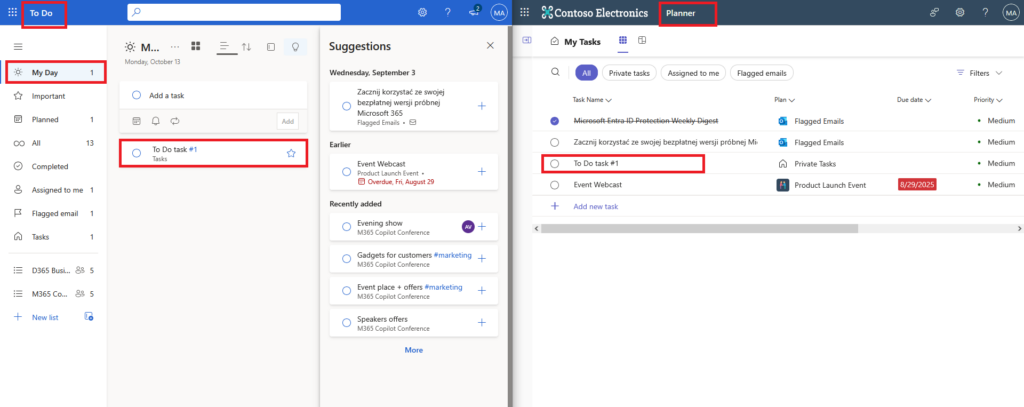
Planner's content consists of tasks and, as you know, you can create them in several different places. If you're an Outlook fan, every flagged email will be sent to Planner. Tasks you've created in the To-Do app will also appear there. What's more, marking a task as completed in one app will see the same result in the other.
Edit tasks in bulk
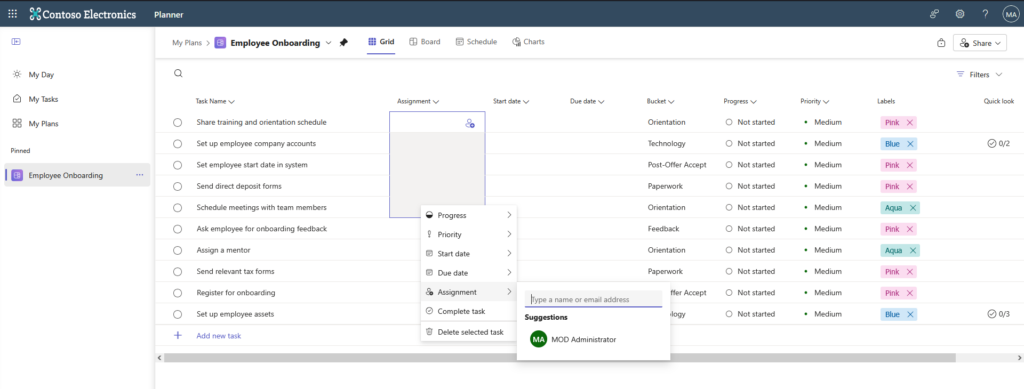
Another useful feature that speeds up daily work and wasn't available in the previous version of Microsoft Planner, is the ability to bulk-edit tasks. Previously, to assign multiple tasks to someone, you had to access each task individually and select the appropriate person. In the current version, simply hold the left mouse button and select multiple tasks or hold the Ctrl key and click the desired ones. Then, hover over one of the selected tasks and click the three dots that appear or right-click to display options. Now, simply select what you need, for example, mark all selected tasks as "Completed" or delete them.
Export plan to Excel
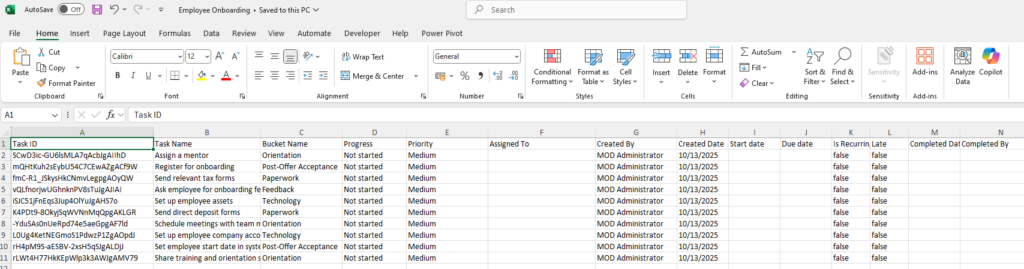
The final feature – something for spreadsheet fans – is that Planner allows you to export your plan to Microsoft Excel. This can be useful when you need to prepare a report for management and… it can't be in any other format than an .xlsx file, the popular Excel format. To use this feature, simply click the arrow next to the name of the plan you're currently on and select "Export plan to Excel."
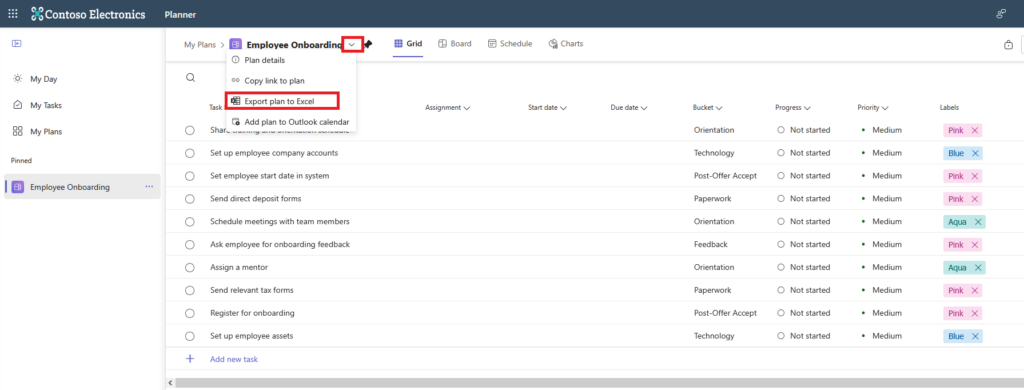
After a while, the file will be downloaded to your computer and when it is opened it will look like this:
Want to discuss the features presented, feel like they're not working in your app or you are curious about how else you could use Microsoft Planner in your business? Don't wait, contact us and schedule a free consultation with our expert, who will provide you with the necessary information. Oh, and don't forget to follow the next posts in our "#Top5" series.
